WooCommerce now has a point of sale of its own. The Woo mobile app has a POS mode that turns a tablet into a register, every in-person sale lands in the same dashboard as your online orders and the software is free.
It's still an early version, though. WooCommerce's POS page says it doesn't work offline, and receipt printing, cash drawers and support for more than one location are still on the way.
Plenty of stores that sell in person need at least one of those, so they look at POS plugins built for WooCommerce or at standalone systems such as Square, which WooCommerce named its preferred POS partner in May 2025.
Those options differ in more than features. Some save every in-store sale straight into WooCommerce, with the customer attached. Others keep their own records and pass only products and stock counts to your store, in some cases on an hourly schedule.
This guide explains each kind of WooCommerce POS, the features worth checking, how each one shares data with your store and which businesses each one suits.
What is a WooCommerce POS?
A WooCommerce POS is the system you use to sell in person, at a counter, a market stall or a pop-up, while sharing products, stock, orders and customer details with a WooCommerce online store. It does the usual point-of-sale jobs, such as ringing up items, taking cash and card payments and sending receipts, and it also has to keep your website's stock count right.
(Our guide to what a POS system is covers the parts and costs of a POS in general.)
WooCommerce works differently from hosted platforms. It's an open-source plugin for WordPress that you run on your own hosting, which makes room for POS plugins that use your own site as the register. It also means your hosting has to handle in-store sales as well as online ones.
What are the POS options for a WooCommerce store?
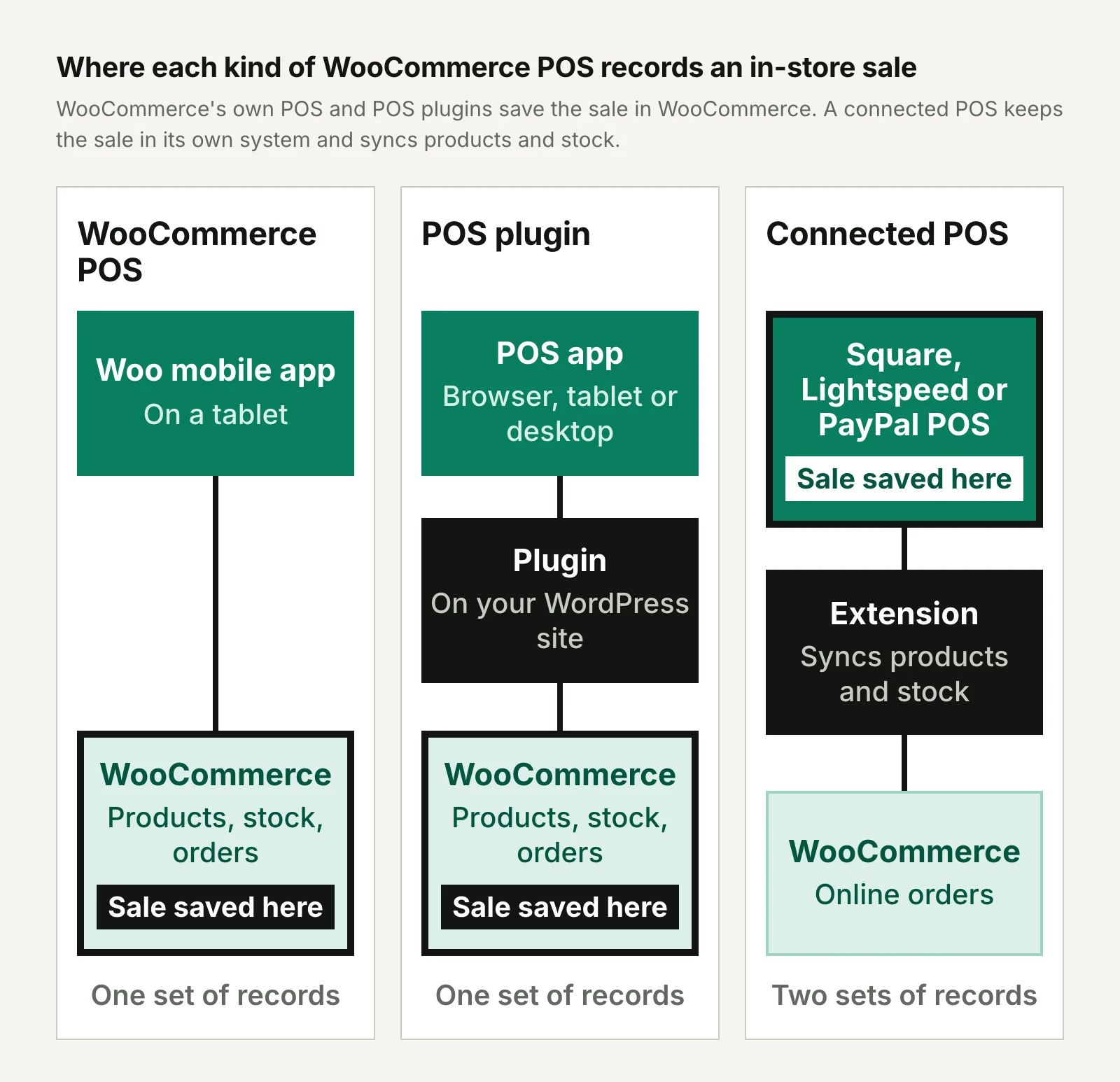
A WooCommerce store can sell in person with WooCommerce's own POS in the Woo mobile app, with a POS plugin that runs inside WooCommerce or with a standalone POS connected through an extension. The biggest difference between them is where an in-store sale is recorded.
Does WooCommerce have its own POS?
WooCommerce has its own point of sale: a free POS mode in the Woo mobile app that turns a tablet into a register. That sets it apart from Adobe Commerce, which leaves the POS to partners, and puts it closer to Shopify, which has a POS of its own.
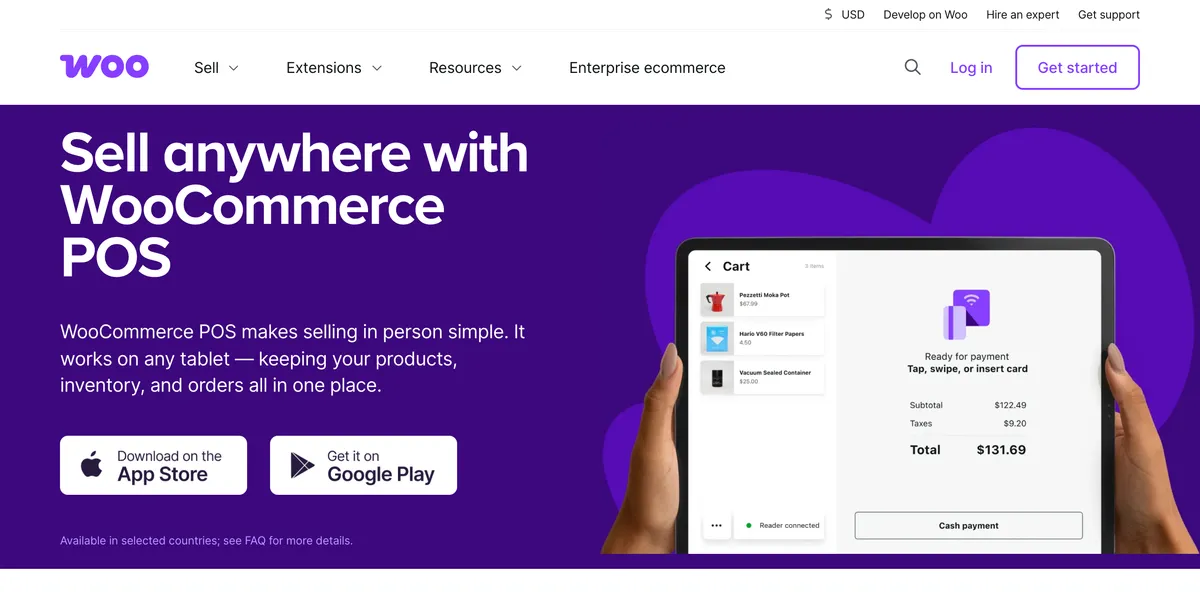
According to WooCommerce's documentation, POS mode shows your WooCommerce products on the tablet, takes cash or card payments, applies coupons, emails receipts and works with Bluetooth barcode scanners. Card payments go through WooPayments or Stripe, using an M2 card reader in the US or a WisePad 3 in other supported countries, and in the US and UK an Android phone can act as the card reader.
In-person orders appear alongside online ones in the WooCommerce dashboard, where you can filter sales by channel and refund them.
It's available only to stores based in Australia, Canada, Finland, Ireland, Luxembourg, the Netherlands, New Zealand, Singapore, the UK and the US that use their country's currency. It supports simple, variable and virtual products but not subscriptions or downloadable products, and it needs an internet connection to create orders and take payments.
WooCommerce describes it as an early version that it's still expanding.
What do WooCommerce POS plugins do?
A WooCommerce POS plugin adds a register to your own WordPress site, so the till reads and writes the same products, stock, orders and customers as your online store. There's no second catalog to keep in sync: an in-store sale becomes a WooCommerce order when it's saved, and the stock count on your website drops with it.
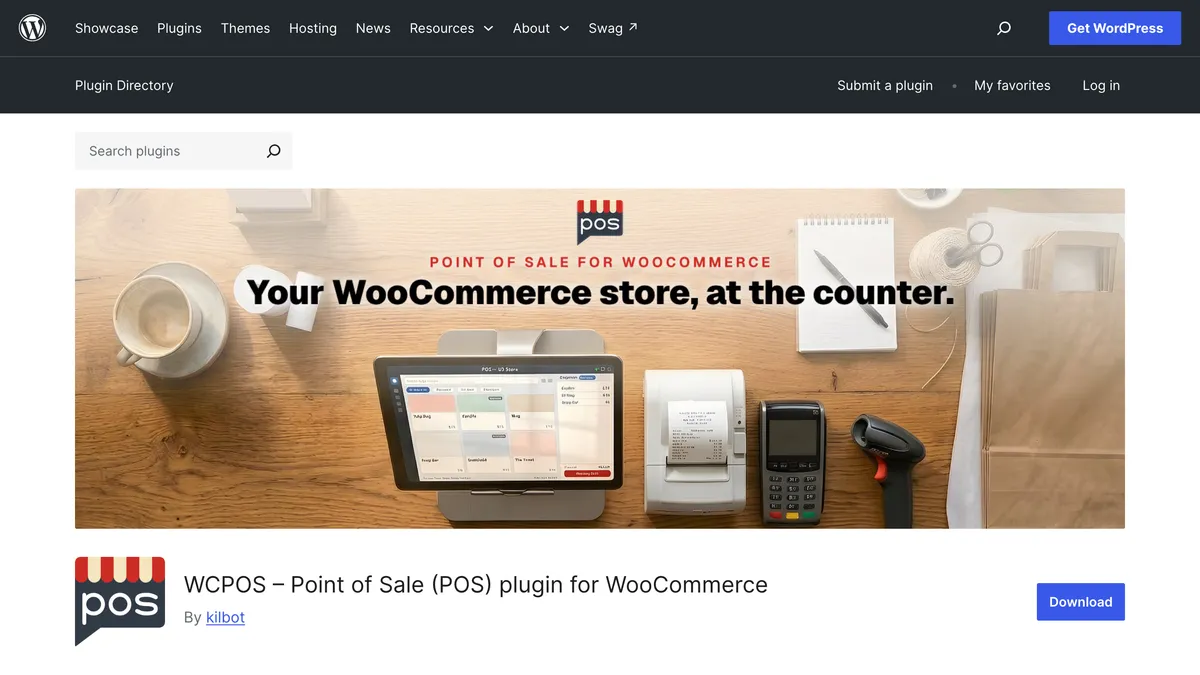
The plugins below pair a WordPress plugin with apps for browsers, tablets or desktops, and they go further than WooCommerce's own POS on hardware, offline selling and staff features. Examples on WordPress.org include:
- WCPOS: a free plugin, formerly called WooCommerce POS, that runs in a browser or as a desktop app, with iOS and Android apps in beta. It works with barcode scanners, thermal receipt printers and cash drawers. The paid Pro version adds Stripe Terminal and SumUp card readers, customer and stock editing, refunds and separate store locations.
- FooSales: apps for iPhone, iPad, Android and the web that use WooCommerce as their database. Staff can create and edit WooCommerce customers at the till, and its Plus plan adds Square and Stripe payments, including their card readers, and Tap to Pay.
- Oliver POS: a register for iPhone, iPad, Android and the web that works through WooCommerce's official REST API. It's built to keep selling offline, and its top plan tracks stock separately for each outlet.
Which standalone POS systems connect to WooCommerce?
Square, PayPal POS and Lightspeed Retail are among the standalone POS systems that connect to WooCommerce through an extension. Each keeps its own catalog, stock and sales, and its extension copies products and stock counts between that system and your store.
An in-store sale reaches WooCommerce as a lower stock count rather than as an order.
- Square for WooCommerce: a free extension built by WooCommerce. You choose whether WooCommerce or Square is the source of truth for product data, and stock changes from in-store sales reach WooCommerce at the next scheduled check, hourly by default. It links one Square location and needs a unique SKU on every product.
- PayPal POS for WooCommerce: a free extension from Syde for PayPal's point of sale, which was formerly PayPal Zettle. WooCommerce stays the source of truth: you push your catalog to PayPal POS, and stock syncs both ways as sales come in.
- Lightspeed POS for WooCommerce: a paid extension from Kestrel that imports your Lightspeed Retail catalog into WooCommerce, then keeps SKUs, titles, descriptions, prices and stock in step, with stock updated through webhooks. It connects one Lightspeed store to each WooCommerce site.
Our guide to connecting a POS to your ecommerce store explains how to decide which system owns which data and what tends to go wrong with a sync.
How does each option share data with WooCommerce?
The main difference between WooCommerce POS options is whether WooCommerce holds the in-store records itself or receives copies from another system. WooCommerce's own POS and POS plugins work from one set of products, stock, orders and customers. A connected POS keeps a second set, and its extension decides what crosses over and how often.
| WooCommerce POS | POS plugin | Connected POS | |
|---|---|---|---|
| Products and prices | Downloaded from WooCommerce to the tablet | Read from WooCommerce | Copied between the two catalogs |
| Stock | Updated in WooCommerce with each sale | Updated in WooCommerce with each sale | Synced on a schedule or by webhook |
| In-store orders | Saved as WooCommerce orders | Saved as WooCommerce orders | Kept in the POS |
| Customers | Customer details on the WooCommerce order | WooCommerce accounts, which some plugins let staff create and edit at the till | Kept in the POS |
| Refunds of in-store sales | In the app or the WooCommerce dashboard | At the till with WCPOS Pro, FooSales and Oliver POS | In the POS |
One set of records is what lets a business treat an in-store shopper and an online shopper as the same customer. The trade-off is that your WordPress site does more of the work, which matters when you look at offline selling and hosting below.
What features should a WooCommerce POS have?
A WooCommerce POS should keep stock accurate across channels, recognize customers wherever they buy, handle returns from either channel and keep working when the connection or the server struggles. Check each feature below against how your shop actually runs.
Inventory sync that keeps up with the counter
With a WooCommerce POS, stock accuracy depends on how quickly an in-store sale reaches your website. WooCommerce's own POS and POS plugins change WooCommerce's stock count directly with each sale, and WooCommerce describes the update for its POS as real time.
A connected POS adds a delay that depends on its extension: Square for WooCommerce checks for stock changes hourly by default, while Kestrel says its Lightspeed extension updates stock near-instantly through webhooks.
If you sell low-stock or fast-moving items in both places, a long sync interval is where overselling creeps in. Square's interval can be changed in its settings, though its documentation notes that polling more often adds load to your server.
Customer profiles and loyalty across channels
Recognizing a customer at the counter depends on the POS reading and writing WooCommerce customer accounts. FooSales and WCPOS Pro both let staff create and edit WooCommerce customers at the till, so an in-store purchase joins that customer's online order history.
WooCommerce's own POS documentation covers products, payments, coupons and receipts but doesn't describe looking up a customer's account.
Loyalty follows the same logic. A points or rewards plugin built on WooCommerce orders can only reward in-store purchases that exist as WooCommerce orders under the customer's account, so test one with a POS sale before launch.
A connected POS keeps customers in its own system. The sync settings in Square's extension, for example, cover products, stock and order fulfillment status.
A shared customer record is also what lets you see whether shoppers who buy in both channels come back more often, using measures such as customer retention rate.
Returns and refunds in either channel
A shopper who buys online and returns the item in store, or the other way round, tests whether your POS can see both channels' orders. When in-store sales are WooCommerce orders, staff can find and refund them from the same order list: WooCommerce's POS refunds in-person orders from the app or the dashboard, and FooSales can refund WooCommerce orders at the till.
With a connected POS, a return crosses two systems. Square's extension can send online orders to Square for fulfillment, but its documentation says refunds made in Square don't sync back to WooCommerce, so they have to be recorded in WooCommerce separately.
Can the POS keep selling offline?
Offline support differs widely between WooCommerce POS options, and it matters most at markets, festivals and pop-ups where Wi-Fi is unreliable. WooCommerce's own POS needs a connection to create orders and take payments.
WCPOS lets staff keep browsing products, building carts and saving orders during a connection drop but needs a connection to take payment. FooSales can take cash and manually entered card payments offline, and Oliver POS queues complete sales on the device, then sends them to WooCommerce in order when the connection returns.
Among connected systems, Square's offline payments let its POS accept cash and cards from most major brands without a connection. The payments process automatically once the device reconnects, which Square says should happen within 24 hours and no later than 72.
Does it handle more than one location?
Support for more than one shop varies between WooCommerce POS options, so check it early if you run several. WooCommerce's own POS doesn't support multiple locations yet, and the Square and Lightspeed extensions each connect one Square location or Lightspeed store to a WooCommerce site.
Among plugins, Oliver POS's Enterprise plan tracks stock per outlet and moves stock between them, and WCPOS Pro gives each store location its own tax settings, prices and receipts.
Hardware that works with it
Hardware support decides what you can use at the counter. WooCommerce's POS works with the card readers WooCommerce sells and with Bluetooth barcode scanners, with receipt printers and cash drawers still to come.
WCPOS works with standard barcode scanners, 58mm and 80mm thermal printers and cash drawers, and its Pro version adds Stripe Terminal and SumUp readers. FooSales and Oliver POS both support Stripe Terminal readers and Tap to Pay on phones, while a connected POS uses its vendor's own hardware, such as Square Register and Square Terminal.
Will your hosting keep up?
A POS that works from WooCommerce's data puts in-store traffic on the same server as your website, because WooCommerce runs on hosting you choose and manage.
WooCommerce's POS fetches current data from your site at checkout, and Oliver POS needs a live connection to WooCommerce for refunds, customer lookups and live stock checks, so a slow or overloaded site slows the counter too. WooCommerce's POS and WCPOS both keep a copy of the product catalog on the device to make browsing fast.
Before you go live, run a few test checkouts at your busiest time of day. Check that your store uses WooCommerce's High-Performance Order Storage, which keeps orders in dedicated database tables and has been the default for new stores since WooCommerce 8.2, and that your POS supports it.
A connected POS leans on WordPress background processing instead: Square's extension needs it to sync products and stock, so make sure scheduled tasks run reliably on your hosting.
WooCommerce POS options compared
A WooCommerce POS plugin or extension costs anywhere from nothing to a few hundred dollars a year, before card fees, hardware and any standalone POS subscription. WooPayments, one of the two payment options for WooCommerce's own POS, charged US stores 2.70% + $0.10 per in-person card payment in October 2026, according to its fee schedule.
| POS | How it connects | Selling offline | Price, October 2026 |
|---|---|---|---|
| WooCommerce POS | Built into the Woo mobile app | No | Free, plus $5 a month per active card reader |
| WCPOS | Plugin | Carts and orders, not payments | Free; Pro $129 a year or $399 for a lifetime license |
| FooSales | Plugin | Cash and manual card payments | US$19 or US$38 a month per store, billed annually |
| Oliver POS | Plugin | Complete sales, queued on the device | Free for up to 20 products and 50 transactions a month; paid plans $89 to $489 a year, billed annually |
| Square | Free extension by WooCommerce | Cash and most cards, in Square's POS | Extension free; Square's Free plan has no monthly fee, plus processing fees |
| PayPal POS | Free extension by Syde | Depends on the POS | Extension free, plus PayPal POS's own costs |
| Lightspeed Retail | Paid extension by Kestrel | Depends on the POS | Extension $249 a year, plus a Lightspeed plan |
Which WooCommerce POS suits your store?
The right WooCommerce POS depends mostly on how often you sell in person, whether you already run a POS and how many locations you have.
| If your store… | Consider |
|---|---|
| Sells at markets, pop-ups or events from one tablet, in a supported country | WooCommerce's own POS |
| Runs one shop that needs receipt printers, cash drawers or offline sales | A POS plugin such as WCPOS, FooSales or Oliver POS |
| Has several shops that each need their own stock count | A plugin that tracks stock per outlet, such as Oliver POS on its Enterprise plan |
| Already sells in store with Square, PayPal POS or Lightspeed | That system's WooCommerce extension |
| Wants a POS vendor's hardware, staff scheduling and marketing tools | A standalone POS such as Square, connected through its extension |
WooCommerce's own POS is best suited to occasional in-person selling by a store that already uses WooPayments or Stripe. Compared with a plugin, it costs nothing to try, but it can't sell offline or print receipts yet.
A POS plugin is a strong fit when a shop is a permanent part of the business and you want WooCommerce to stay the only database, so in-store orders, customers and loyalty all live in one place. Choose one with the offline mode, hardware support and locations your shop needs, and budget for hosting that can carry the extra load.
A connected POS is ideal for retailers that already run Square, PayPal POS or Lightspeed in store and don't want to replace hardware or retrain staff. Square's listing on WooCommerce.com also points to its staff scheduling, payroll and email and SMS marketing tools.
The trade-off is that WooCommerce sees in-store stock changes rather than in-store orders.
Final thoughts
The WooCommerce POS you choose decides where your in-store customers' history lives. WooCommerce's own POS and POS plugins put every sale into WooCommerce, which keeps one stock count and one order history for each customer.
A connected POS lets you keep a system your staff already know, at the cost of two sets of records and a sync to watch.
Start with how you sell in person today. If it's an occasional stall, try WooCommerce's free POS first. If it's a shop that needs printers, offline sales or more than one location, compare plugins with a connected POS on the features above, and test a few real sales, returns included, before you commit.
Frequently asked questions
What's the best POS for WooCommerce?
The best POS for WooCommerce depends on how you sell in person. WooCommerce's own POS suits occasional selling from one tablet, plugins such as WCPOS, FooSales and Oliver POS suit permanent shops that want everything in WooCommerce, and Square, PayPal POS or Lightspeed suit retailers that already use one of them. The comparison table above sets out their prices and offline support.
How much does a WooCommerce POS cost?
A WooCommerce POS can cost nothing for the software, but card processing, hardware and paid plans add up. In October 2026, WooCommerce's own POS was free apart from $5 a month per active card reader and card fees, plugin plans ran from free to $489 a year, and Kestrel's Lightspeed extension cost $249 a year on top of a Lightspeed subscription. Budget for card readers, barcode scanners and receipt printers too.
Can you run a WooCommerce POS on a phone?
You can run some WooCommerce POS apps on a phone. FooSales and Oliver POS both have apps that work on phones as well as tablets and support Tap to Pay, so a phone can be the whole register. WooCommerce's own POS is designed for tablets, and its documentation lists phone support for UK merchants on iPhone only so far.
Do in-store sales show up in WooCommerce reports?
In-store sales show up in WooCommerce reports when the POS saves them as WooCommerce orders, as WooCommerce's own POS and POS plugins do. WooCommerce lists its POS orders alongside online orders and lets you filter sales by channel. With a connected POS such as Square, in-store sales are reported in the POS's own dashboard, and WooCommerce sees only the stock they used.
What happens to your data if you switch WooCommerce POS?
If your POS saves everything in WooCommerce, switching mostly means installing a different register, because the products, orders and customers stay in your WooCommerce database. WCPOS and Oliver POS both say your data remains in WooCommerce if you stop using them. Leaving a connected POS takes more work, since its in-store sales history and customer records stay in that system, so export them before you cancel.