
A customer brings a jacket bought on your website into your store and asks for a smaller size. If the point-of-sale system can't see online orders, staff can't look up what was paid, refund it against the original order or put the jacket back into stock where the website will count it.
A quick exchange becomes a workaround.
Returns are only one place this shows up. When the POS and the online store keep records that don't line up, an item sold at the counter can stay on sale online, the same shopper ends up with two customer profiles and points earned online can't be spent in store.
Each gap shows up in front of a customer who chose to buy from you in more than one place.
A good ecommerce POS integration prevents this by settling which system owns each kind of data and how quickly changes travel between them. This guide explains what a POS integration syncs, the main ways to connect a POS to your online store, what tends to go wrong and how to set one up or replace one.
What does a POS integration sync?
A POS integration keeps the records your stores and your website both rely on in step: products, prices, inventory, orders, customers, loyalty balances, gift cards and returns.
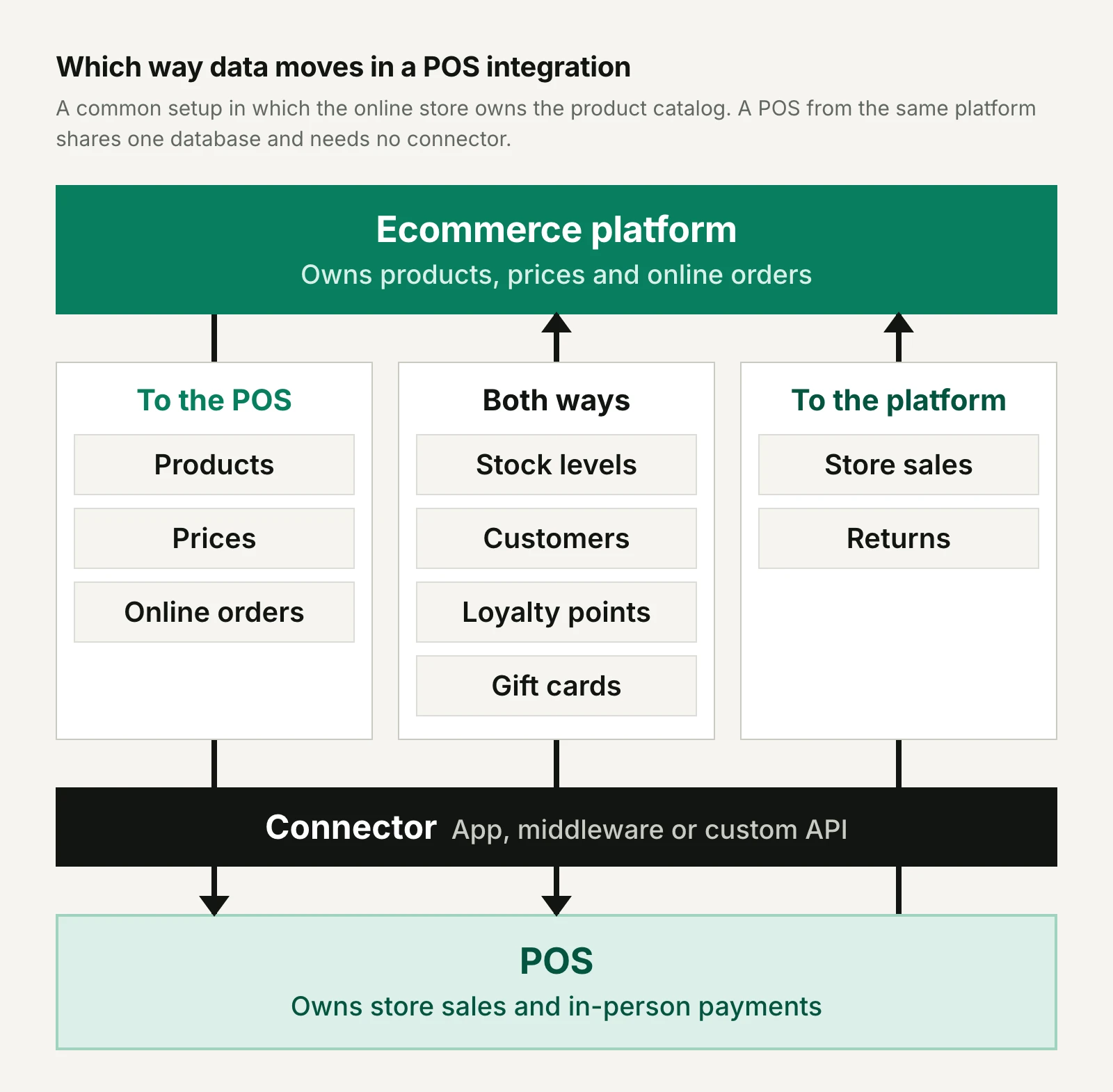
Most of it moves both ways. A sale at the counter must reduce the stock your website shows, and an online order must be visible at the counter when the customer comes to collect it or bring it back.
Choosing the POS itself is covered in our guide to what a POS system is and how it works.
Which system should own each kind of data?
Each kind of data needs one system of record: the place where it's created and edited, and the version every other system copies when the two disagree. Without one, both systems can change the same record, and whichever sync runs last wins.
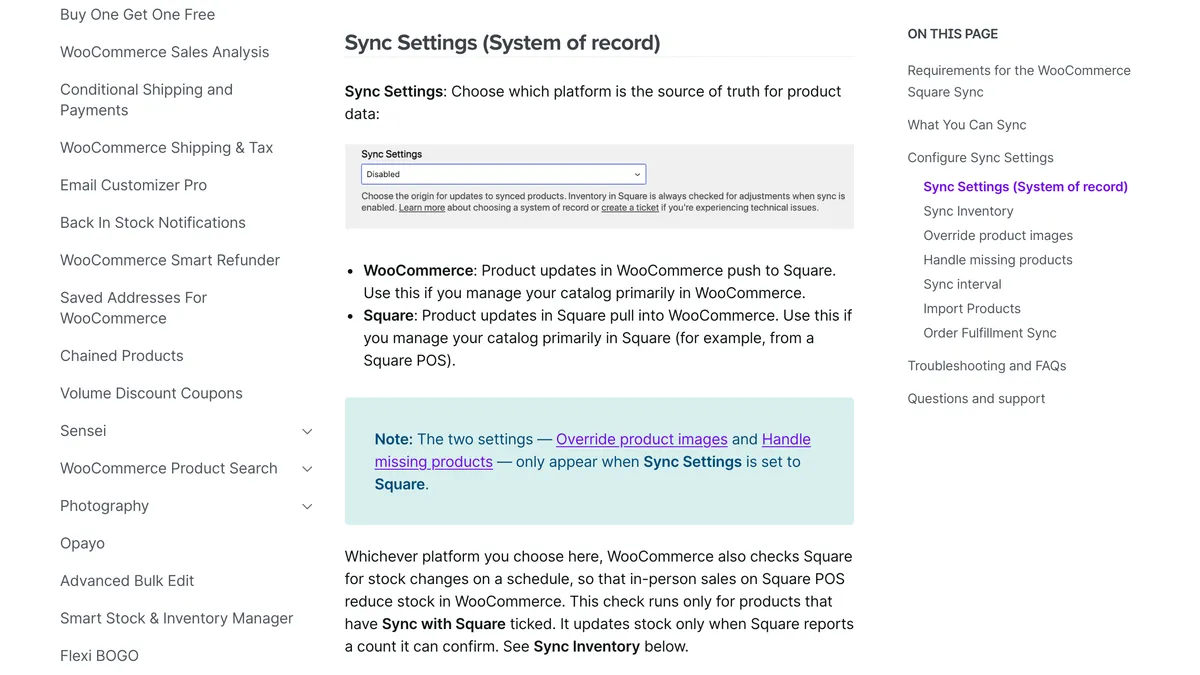
The Square extension for WooCommerce makes this a setting, asking which platform is "the source of truth for product data", and warns that a later check from Square can overwrite a stock count entered by hand in WooCommerce.
| Data | Usual system of record | Which way it flows | Why |
|---|---|---|---|
| Product details and images | The ecommerce platform, or a PIM or ERP if you use one | To the POS | Online listings need the fullest content; the POS needs names, variants, barcodes and prices |
| Prices | The same system as products | To the POS | One price list stops the channels drifting apart; store-only offers can still be set in the POS |
| Inventory | The system that tracks stock by location: the platform, an ERP or an order management system | Both ways | Sales, returns and transfers in either channel change what's available |
| Online orders | The ecommerce platform | To the POS | Staff need to find them for pickup and returns |
| Store sales | The POS | To the platform or ERP | They belong in the customer's order history, loyalty balance and reports |
| Customer profiles | One shared record, usually the platform's | Both ways | Either channel can create or update a customer |
| Loyalty points, gift cards and store credit | The system that issues them, often the platform or a loyalty app | Both ways | A balance has to match at the counter and at checkout |
| Returns | The order they belong to | Both ways | A refund has to update the original order, its stock and any points it earned |
Retailers whose stores came first often reverse the top rows, with the POS or an ERP holding the catalog and the website copying it.
Does the sync need to be real time?
Stock levels, gift card balances and loyalty points need to sync in real time or close to it, because a customer can act on a stale figure within minutes. Product descriptions, images and sales reports can wait for a scheduled sync.
Real-time sync runs on events: when something changes, the system sends a message, often called a webhook, to the connector straight away. A scheduled sync checks for changes at a set interval instead, which is simpler but leaves the other system blind between checks.
The Square extension for WooCommerce checks for order updates every 15 minutes and for product and stock changes every hour by default, and shortening the interval means more API calls to Square.
The most dependable setups use both. Shopify's developer documentation says webhook delivery "isn't always guaranteed" and recommends reconciliation jobs that periodically fetch data as a backstop: events for speed, and a scheduled check for anything they missed.
What are the different ways to connect a POS to an ecommerce store?
You can connect a POS to an ecommerce store by using the POS that comes with your platform, adding a POS built for your platform as an app or extension, or linking a standalone POS through a connector, middleware or a custom API build.
The main difference is where the data lives: the first two keep one set of records, while the third keeps two and syncs them.
A POS from the same platform as your online store
A POS made by your ecommerce platform needs no integration in the usual sense, because the stores and the website share one database. Shopify POS runs from the same back office as the online store, and its Orders screen lists every order, whether it was placed online or in person.
WooCommerce now has a POS of its own, free in the Woo mobile app, that works from the store's own products, inventory and orders.
The trade-off is that your store features are limited to what the platform offers: WooCommerce's POS doesn't work offline and doesn't yet offer multi-location support, receipt printing or cash drawers. Our guides to choosing a POS for your Shopify store and WooCommerce POS options compare the options for each platform in more detail.
A POS built for your platform as an app or extension
Platforms without a POS of their own, or with a basic one, have POS systems built specifically to read and write the platform's data. Adobe Commerce has no first-party POS, but Magestore's POS is built natively for it, syncing store sales back to Adobe Commerce.
On WooCommerce, the open-source WCPOS plugin works from the store's own catalog, stock and prices, and every sale lands in WooCommerce.
This approach suits retailers that want the online platform at the center but need store features it lacks, such as selling offline, which both Magestore and WCPOS support. It does depend on one vendor keeping pace with platform updates. Our Adobe Commerce POS guide compares native and connected options there.
A standalone POS connected through a connector or middleware
A standalone POS keeps its own catalog, stock and customers, so something has to keep those records in step with the online store. That can be:
- A vendor connector: an app or extension built by the POS or platform company, such as the Square extension for WooCommerce.
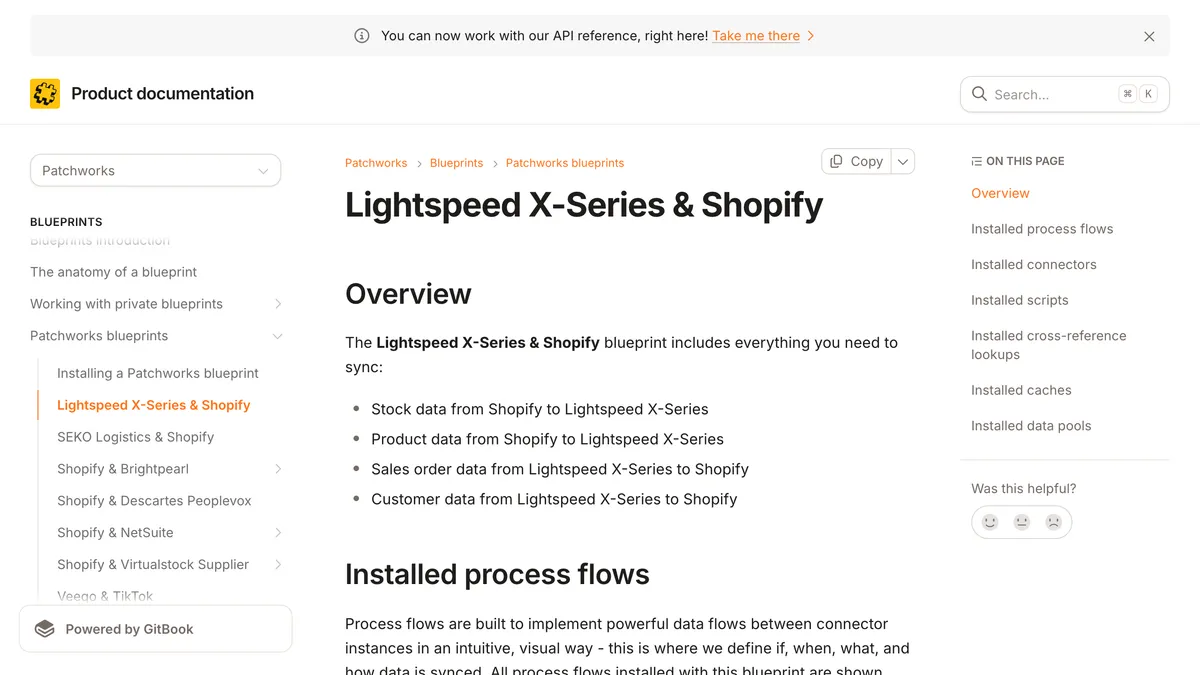
- Middleware or an integration platform: a service that runs data flows between many systems. Patchworks' blueprint for Lightspeed X-Series and Shopify sends stock and products from Shopify to Lightspeed, and sales orders and customers from Lightspeed to Shopify.
- A custom API build: your developers or an agency write the connection against both systems' APIs, with full control and full responsibility for maintaining it.
This is the usual route for retailers whose stores came first or that rely on POS features their ecommerce platform can't match. Compared with a same-platform POS, it adds a moving part to monitor and, often, another vendor to call when something breaks.
Which integration approach suits your business?
The right approach depends mostly on which channel came first and how many systems you're willing to keep in step.
| Approach | Where the data lives | Examples | Best suited to | Main drawback |
|---|---|---|---|---|
| Same-platform POS | One shared database | Shopify POS, WooCommerce POS | Brands that started online and are adding stores or pop-ups | Store features are limited to what the platform offers |
| POS built for your platform | In the ecommerce platform | Magestore for Adobe Commerce, WCPOS for WooCommerce | Retailers on a platform with no strong POS of its own | Depends on one vendor keeping up with platform updates |
| Standalone POS with a connector | In two systems kept in sync | Square with WooCommerce, Lightspeed with Patchworks, custom API builds | Store-led retailers and chains committed to an existing POS | Sync delays, mapping work and more vendors to manage |
A same-platform POS is a strong fit when your stores are newer or smaller than your online business, because it removes the integration altogether. A standalone POS with a connector works best for retailers that already depend on their POS and can give the connection a clear owner.
What goes wrong with a POS integration, and how do you prevent it?
Most POS integration problems come from timing, matching and edge cases: data that arrives too late, records that don't match between systems and transactions the connector wasn't built to handle. Each has a fix you can put in place before launch.
Why do store sales cause overselling online?
Store sales cause overselling online when the website hears about them too late. Any delay between a sale at the counter and the stock update online lets a shopper buy an item that's already gone, and the risk is highest on the last few units of a popular size.
To prevent it:
- Sync stock on events rather than only on a schedule, and shorten any interval you can't remove.
- Hold back a small buffer on fast-moving items, so the website shows them as sold out a unit or two before the store runs out.
- Decide which locations count toward online availability, since store stock is the most likely to change without warning.
Where do duplicate customer records come from?
Duplicate customer records come from cashiers creating a new profile instead of finding the existing one, and from connectors that can't recognize a customer who's already there. A shopper who uses an email online and a phone number at the counter can end up as two people, with their orders, points and credit split between them.
Match customers on email first and phone number second, and train staff to search before they create. The Patchworks blueprint for Lightspeed and Shopify, for example, de-duplicates customers using email as the unique key.
Cleaning up later is harder. Shopify can merge two customer profiles, but a merge can't be reversed and isn't allowed when either profile has a store credit account or has ever had a subscription contract.
Why don't products match between the POS and the website?
Products fail to match between the POS and the website when the two systems identify them differently. Connectors usually pair items by SKU, so a missing, duplicated or reformatted SKU stops an item syncing or, worse, links it to the wrong product.
The Square extension for WooCommerce, for one, will only import products that have unique SKUs in Square.
Variants cause the most trouble. A jacket in five sizes and three colors is 15 sellable items, each needing its own SKU and barcode, the same in both systems. Bundles and made-to-order items often have no stock of their own, so decide how they should behave before you connect them.
Why do prices and taxes differ between channels?
Prices differ between channels when each system keeps its own price list or promotions, and taxes differ because a store sale and an online order are often taxed by different locations. Shopify POS, for example, applies taxes based on the store location assigned to the device, and since an August 2026 update, Shopify calculates US tax on local pickup orders from the pickup location.
Mismatches show up when one transaction touches both systems, such as an online discount code a customer tries to use at the counter, or an in-store refund that doesn't match the tax charged on the original online order. Keep one system of record for prices, decide which promotions apply in which channel and test tax on pickup orders and returns before launch.
How do you return an online order in store?
Returning an online order in store means the POS has to find the original order, refund it to the right payment method and put the item back into the right stock, which only works if online orders reach the POS. It's a common request: 29% of US retail returns in 2025 were bought online and returned in a store, against 19% bought and returned online, according to Appriss Retail.
In Shopify POS, a restocked item is added to the inventory of the store where it's returned, not the warehouse it shipped from.
With a connector, check that a store return updates the original online order, not just the POS, so the refund, the stock and any points the order earned are reversed together. (Our ecommerce returns statistics cover how shoppers prefer to send things back.)
What happens when the POS goes offline?
A POS that goes offline can usually keep taking some payments, but it stops syncing, so stock, customer lookups and balances freeze until it reconnects. Shopify POS, for example, can't sync orders and inventory with the Shopify admin while offline, can't search for or create customers, can't accept or sell gift cards and can't process returns or fulfill pickup orders.
Card payments taken offline aren't captured until the device reconnects, so Shopify advises reconnecting ideally within 24 hours.
Offline support varies a lot. WooCommerce's POS doesn't work offline at all, while Magestore and WCPOS let staff keep selling when the internet drops. If you sell at pop-ups or events, check what your POS can do without a connection and who confirms that offline orders arrived once it's back.
How to set up or replace a POS integration
Setting up a POS integration, or replacing one that isn't working, follows the same order: decide what has to sync, clean up the data, then test with real transactions before the stores rely on it.
1. Map the data and the journeys
List every kind of data the stores and the website share, then every journey that crosses channels: buy online, pick up in store, return an online order in a store, buy a gift card online and spend it at the counter, and earn points in one place and redeem them in the other. Each journey shows which data has to move and how fast.
2. Choose a system of record for each type of data
Use the table above as a starting point and write down the owner of each data type, the direction it flows and how quickly it needs to arrive. This is also the point to choose your approach: if nearly everything should live in your ecommerce platform, a same-platform POS or one built for it may remove the need for a connector.
3. Clean up SKUs, barcodes and customer records
Give every variant a unique SKU and barcode that's the same in both systems, and remove duplicates and retired products before the first sync copies them across. Merge duplicate customer profiles while you still can, and agree on how a customer is matched, usually by email and then phone number.
4. Test with real orders
Run the journeys from your map as real transactions, at a test location or outside opening hours: a store sale, an online order collected in store, an online order returned in store, a gift card and a loyalty redemption in each direction, and a sale made offline. Check each one in both systems, including stock, tax, order history and points.
5. Train store staff
Show staff how to find an online order, search for a customer before creating one and handle the return of something bought online. Give them a short plan for when the POS goes offline: which payments to take, which tasks to put off and who to tell.
6. Monitor the sync after launch
Check the connector's error log daily for the first few weeks, and compare stock counts and order totals between the systems on a regular schedule. Sync failures are often quiet, such as an item that stops updating or a customer created twice, and a weekly report of duplicates and stock mismatches catches them before customers do.
Why does a connected POS matter for customer retention?
A connected POS gives each customer one profile, so loyalty points, store credit, gift cards and pickup orders work wherever they shop with you. Without it, a customer who buys in both places is treated as two people, and the rewards meant to bring them back only work in one of them.
Shopify's store credit shows what this looks like in practice: one balance that a signed-in customer can spend in the online store, in Shopify POS and in the Shop app.
A loyalty app needs the same reach, so it has to connect to your POS as well as your website. Our guide to Shopify loyalty programs covers what to check.
On our podcast, Sarah Sathaye, chief revenue officer of NAADAM, discussed how seasonal pop-up stores lift engagement and order frequency for the brand. You can only measure a lift like that when pop-up sales land on the same customer records as online orders.
Final thoughts
A POS integration is mostly a set of decisions: which system owns each kind of data, how fast it has to move and what happens when the connection drops. Write them down before the first sync runs.
Whether you choose your platform's own POS, one built for it or a standalone system with a connector, test the journeys your customers actually take and keep watching the sync once the stores depend on it. When it works, a customer who buys online and returns in store, or earns points at a pop-up and spends them online, never notices the systems underneath.
Frequently asked questions
What is a POS integration?
A POS integration is a connection between a point-of-sale system and other business software, most often an ecommerce platform, that keeps products, inventory, orders and customer data the same in both. It can be built into the platform or run through an app, middleware or a custom API connection. The term also covers POS links to accounting, ERP and payment systems.
How much does a POS integration cost?
A POS integration can cost nothing beyond the POS itself or turn into a development project with ongoing fees, depending on the approach. The Square extension for WooCommerce is a free download, and WooCommerce's own POS is free in the Woo mobile app, with card readers at $5 a month each in October 2026. Middleware platforms such as Patchworks quote prices on request, and a custom API build is priced as development work plus maintenance.
Can you connect any POS to any ecommerce platform?
You can connect most modern POS systems to most ecommerce platforms, but not always with a ready-made connector. Popular pairings, such as Square and WooCommerce, have an official extension or app, while less common ones need middleware or a custom build, which costs more to set up and maintain. Before choosing a POS, check that a maintained connector exists for your platform and what data it actually syncs.
Should the POS connect to the ERP or to the ecommerce platform?
A POS should connect to whichever system is the system of record for products and stock, which for larger retailers is often the ERP rather than the ecommerce platform. In that setup, the POS and the online store both sync with the ERP, which keeps one inventory count for every location. Brands without an ERP usually connect the POS straight to the ecommerce platform.
Does a POS integration sync loyalty points and gift cards?
A POS integration syncs loyalty points and gift cards only if the connector or the system that issues them supports it, so check rather than assume. The Patchworks blueprint for Lightspeed and Shopify, for example, covers stock, products, sales orders and customers, but not gift cards or points. Confirm that your loyalty app or gift card system works in both channels before you launch.